Elive has recently added a small own tool for voice control, useful for hands-free control your computer.
The tool is an extremely small and lightweight C source code that does voice recognition patterns, you have here two main usages:
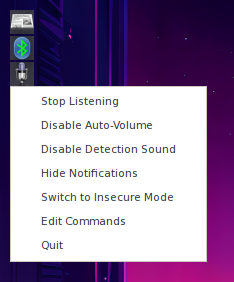
GUI mode
GUI tool with a set of preconfigured (and editable) commands to listen and react
List of Defined commands & triggers
# Elive Listener Commands Configuration
# ------------------------------------
# This file defines the voice commands that will recognize.
#
# Format: phrase|command|safety_mode
#
# 1. phrase:      The words to speak (lowercase recommended).
# 2. command:     The shell command or script to execute.
# 3. safety_mode: 0 = Always active.
#                 1 = Dangerous/Sensitive (only active if --full is passed to the listener).
#
# You can customize it as your preferences and purposes:
#
decrease volume|setvolume 10 down|0
increase volume|setvolume 10 up|0
mute volume|setvolume mute|0
pause music|audacious -u|0
play elive music|mpv --profile=pseudo-gui --autofit=35% --ytdl --ytdl-format=22/bestaudio*/mp4 'https://music.youtube.com/?list=PL8StX6hh3Nd8JNRF75IOA9wnC8pKfB7cs' --shuffle|0
play retro music|mpv --profile=pseudo-gui --autofit=35% --ytdl --ytdl-format=22/bestaudio*/mp4 'https://music.youtube.com/?list=PL8StX6hh3Nd8JNRF75IOA9wnC8pKfB7cs' --shuffle|0
play music|audacious -p|0
play next song|audacious -f|0
stop music|audacious -s|0
desktop next|eesh desk next|0
desktop previous|eesh desk prev|0
show my desktop|e16-minimize-all-windows|1
border less window|eesh wop '*' border BORDERLESS|0
full screen window|eesh wop '*' fullscreen|0
lower down window|eesh wop '*' lower|0
maximize nicely window|eesh wop '*' ts conservative|0
maximize window|eesh wop '*' ts|0
move desktop down|eesh area move 0 1|0
move desktop left|eesh area move -1 0|0
move desktop right|eesh area move 1 0|0
move desktop up|eesh area move 0 -1|0
raise up window|eesh wop '*' raise|0
move down window|eesh wop '*' toggle_size half_S|0
move left window|eesh wop '*' toggle_size half_W|0
move right window|eesh wop '*' toggle_size half_E|0
move up window|eesh wop '*' toggle_size half_N|0
reorder windows|eesh desk arrange size|0
shade window|eesh wop '*' shade|0
stick window|eesh wop '*' stick|0
lock window|eesh wop '*' stick|0
activate keyboard|input-toggle keyboard-on|0
activate mouse|input-toggle mouse-on|0
configure screens|elive-multiscreens|0
configure startup applications|bash -c 'xdg-open ~/.e16/startup-applications.list'|0
configure touch pad|touchpad-configurator -c|0
deactivate keyboard|input-toggle keyboard-off|1
deactivate mouse|input-toggle mouse-off|1
decrease brightness|brightnessctl-elive down|0
increase brightness|brightnessctl-elive up|0
keyboard brightness|elive-keyboard-backlight toggle 4|0
lock my desktop|elive-pm lock|1
lock my screen|elive-pm lock|1
switch off the screen|xset dpms force off|1
switch screen off|xset dpms force off|1
turn off the screen|xset dpms force off|1
switch on the screen|xset dpms force on|1
switch screen on|xset dpms force on|1
turn on the screen|xset dpms force on|1
take screenshot|flameshot gui|0
type what I say|elive-assistant --gui --type listen|0
upgrade my elive|elive-upgrader --upgrade|1
download music|nicotine|0
elive help|hexchat|0
elive keystrokes|elive-help --hotkeys|0
learn typing|klavaro|0
open alarm|alarm-clock-applet|0
set an alarm|alarm-clock-applet|0
alarm clock|alarm-clock-applet|0
open calculator|galculator|0
open camera|cheese|0
open elive music player|synthwave-player|0
open file manager|thunar|0
open my paint|mypaint|0
open office|lowriter || abiword|0
open photo album|shotwell|0
open photo shop|gimp|0
open system monitor|gnome-system-monitor|0
open video editor|cinelerra-gg|0
open video streaming|obs|0
open virtual machine|virtualbox|0
search my files|searchmonkey|0
donate to elive|web-launcher 'https://www.elivecd.org/donate/?id=donate-elive-os-elive-listener'|0
elive forum|web-launcher 'https://forum.elivelinux.org'|0
website as ana|web-launcher --app=https://app.asana.com|0
website calendar|web-launcher --app=https://calendar.google.com|0
open my email|thunderbird || web-launcher 'https://mail.google.com'|0
open torrent|transmission-gtk|0
open web browser|elsurf|0
website red it|web-launcher --app=https://www.reddit.com|0
website you tube|web-launcher --app=https://www.youtube.com|0
Commandline, use it as you wanth
For example, with this command just say "keyboard" to enable/disable access to the computer (activates/deactivates keyboard+mouse):
elive-listener "keyboard" | while read -r line; do ; case "$line" in "DETECTED: "*) echo bump ; input-toggle touchpad ; input-toggle mouse ; input-toggle keyboard ; ;; esac ; done
This command listens for your magic (secret) keyword, on this case "keyboard", to enable / disable (as a toggler) your keyboard + mouse + touchpad, I use it as my new "desktop lock" system since I want to still visualize my terminals working from far away, but if somebody try to interact with the computer it would not be able to do it, because the input systems are locked until you say again the magic keyword (unless somebody comes with an external mouse/keyboard and plug it on the computer, probably)
Note: requires "apug" to update elive-tools with fixes on input-toggler tool
Demo:
There's a much better published demo: https://www.patreon.com/elive/posts/voice-control-in-153748762

 , if you run the tool you will see a small helper about that, and about how to make "similar" words for your needs